
This post helps Commander players order a custom MTG Commander proxy deck online by walking through the decklist-to-delivery flow (and the annoying decklist errors that slow it down), so they can get a playable deck in their hands with minimal back-and-forth.
TLDR
- To order a custom MTG Commander proxy deck online, start with a clean 100-card Commander list (99 + your commander).
- Export plain text when you can. Keep it “quantity + card name” per line if you want the fewest surprises.
- If your list includes set codes, collector numbers, or tags, be ready to remove them if the importer complains.
- Most “my deck won’t import” issues are typos, weird punctuation, extra sections (maybe-board), or cards written in the wrong format.
- Do a 60-second cleanup before you checkout. It saves you a day of emails. That is a fantastic trade.
The decklist-to-door problem (and why it’s always the decklist)
Ordering custom cards online is easy right up until your decklist contains one cursed line like “1 Atraxa Praetors Voice” (missing commas), and then everything turns into a tiny administrative drama.
The goal here is simple: order a custom MTG Commander proxy deck online with zero friction, meaning you paste a list, pick the handful of things you actually care about, and then go back to goldfishing like a responsible adult who definitely is not procrastinating.
Step-by-step: Order a custom MTG Commander proxy deck online
1) Start with the right kind of decklist
Commander is a 100-card format. That means 99 cards plus your commander. If you use partners/backgrounds, make sure your list makes that obvious (or matches the ordering site’s instructions).
Quick reality check:
- If your list is 98 cards, you are short.
- If it’s 103, you have “Commander Plus,” which is not a real format, it’s just you dodging cuts.
2) Export to plain text (your future self will thank you)
Most deck tools can export a text list. What you want is boring:
1 Card Name2 Card Name- etc.
If your export includes extra stuff like set codes, collector numbers, foil markers, tags, or category headers, that can still work, but it increases the chance the importer throws a fit.
Rule of thumb:
- If you don’t care about exact printings: plain text, no extras.
- If you do care: include printings, but accept that you might need a quick cleanup.
3) Do the 60-second “checkout-proof” cleanup
Before you paste the list into an order form, do this:
- Remove anything that is not a card line (notes, prices, hyperlinks, “cards I might buy later”).
- Make sure every line begins with a number.
- Confirm your commander is present and spelled correctly.
- Confirm basics are included (people forget basics constantly, which is impressive in a deeply unhelpful way).
If the shop supports set codes, great. If it does not, delete them. Your deck will still function even if your Command Tower is from a different printing. I promise.
4) Paste the list and resolve mismatches
When you paste your decklist into an importer, one of three things happens:
- It imports cleanly (rare, beautiful).
- It imports but flags a few lines.
- It fails and shows you “unmatched cards.”
If you get unmatched lines, don’t panic. It’s usually one of:
- A typo
- A card name formatted strangely
- A special character issue (smart quotes, apostrophes, accented letters)
- Extra metadata the importer doesn’t understand
Fix the flagged lines, re-paste, and continue.
5) Choose the options you actually care about
Most people only truly care about a few things:
- Readability: can you parse the board fast?
- Consistency: do the cards look like they belong in the same deck?
- Finish choices: if offered (foil/etched/etc), pick what you like, but don’t sabotage readability.
If you’re ordering for a pod that plays lots of table magic, readability wins. Cool frames are fun until you are squinting at a wall of full art and pretending that’s “part of the experience.”
6) Checkout like a normal person (address, shipping, done)
Double-check:
- Shipping address is correct (including apartment/unit).
- Your email is correct (for confirmation and tracking).
- Your list is final.
Then checkout.
7) After checkout: what usually happens next
Even when every shop runs slightly differently, most flows look like this:
- Order confirmation hits your email.
- Your list is queued for print/production.
- Cards get printed, cut, and packed.
- A shipping label is created.
- Tracking goes live, then the package actually moves (sometimes hours later, because logistics is powered by vibes).
If you ever wonder, “Why does tracking say ‘Label created’ for a bit?” Congrats, you are now familiar with the shipping industry.
The “don’t-make-me-email-you” decklist checklist
Use this checklist if you want your order to go through cleanly the first time.
- 100 cards total for Commander (99 + commander).
- Every line starts with a quantity (1, 2, 3…).
- Exact card names (spelling and punctuation matter).
- No maybeboard unless the site supports it.
- No commentary like “(this card slaps)” in the same line.
- Set codes and collector numbers only if the importer supports them.
- Split and double-faced cards written the way the importer expects.
If you do all that, you are now in the top 10% of “people who paste decklists online,” which is both a compliment and a mild indictment of the rest of us.
Common decklist errors and fixes (the mini section that saves your weekend)
Here are the usual offenders and how to fix them.
| Problem | What it looks like | Fix |
|---|---|---|
| Missing quantities | Sol Ring | Add a number: 1 Sol Ring |
| Wrong separators / extra notes | 1 Sol Ring - ramp | Remove commentary from the line |
| Smart quotes / weird apostrophes | Ajani’s Pridemate (curly quote) | Re-type the line in plain text |
| Set codes not supported | 1 Sol Ring (CMM) 410 | Remove set/number and try again |
| Maybeboard included | Imports 140 cards | Export deck-only, or delete maybeboard section |
| Commander not identified | Commander ends up in mainboard | Put commander in the right section, or follow site instructions |
| Split cards formatted wrong | Wear/Tear | Use Wear // Tear if required |
| Double-faced confusion | Delver of Secrets mismatch | Use the exact front-face name, no extra clutter |
| Typos | Arcane Signits | Fix spelling, then re-import |
A quick example of the “typo that ruins your life” category:
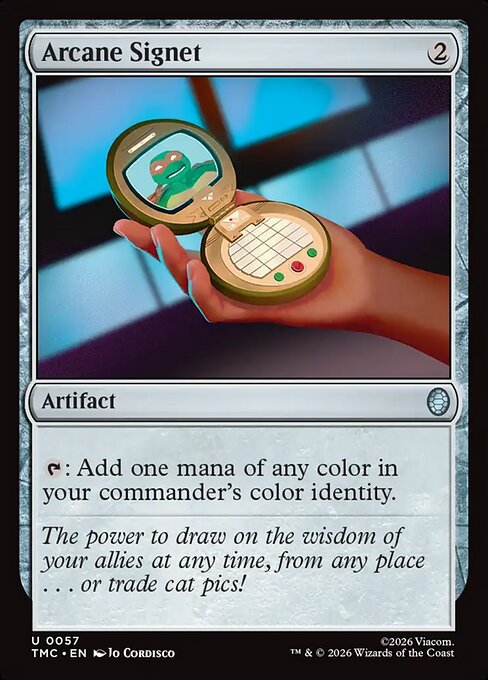

 : Add one mana of any color in your commander's color identity.
If you accidentally pluralize it, add a set tag in the wrong format, or paste it with extra symbols, some importers will not guess what you meant. They should, but they won’t. Computers are brave like that.
The fastest “my list won’t import” troubleshooting sequence
If your decklist fails, do this in order:
- Convert the whole thing to simple format:
qty + card nameonly. - Remove set codes, collector numbers, and tags.
- Re-type the exact lines that fail (don’t just stare at them and hope).
- Try again.
This fixes most import failures because it removes the fancy stuff that is usually the problem.
A short script you can copy-paste if support needs info
If you do need help, sending the right info gets you a faster answer. Try this:
“Hey, I’m ordering a Commander deck and my list has X unmatched lines. I pasted the list in plain text (qty + card name). The unmatched lines are: [paste problem lines]. Can you tell me the correct formatting for those cards?”
It’s polite, specific, and it doesn’t force anyone to play detective.
FAQs
What decklist format works best for ordering online?
Plain text with one card per line, starting with a quantity. It’s the least fragile option across most importers.
Do I need to include set codes and collector numbers?
Only if you care about a specific printing and the order form supports it. If you include them and the importer fails, remove them and try again.
What if I want a specific version of a card (art, frame, etc.)?
Include print details only if supported, otherwise leave a note during ordering (if the shop supports notes) or contact support with a short list of “must match” cards.
Why does my list import as more than 100 cards?
Because you imported a maybeboard/sideboard, duplicate sections, or category exports that included extra cards. Export “deck only,” or delete those sections manually.
Why does tracking sometimes look stuck?
Because carriers often scan labels before packages start moving. It’s common for tracking to show “label created” or similar before the first in-transit scan.